- Double-click the Outlook 98 setup icon.

- Click the Next button to begin setup.

- Read the License Agreemet, and if you agree to its
terms, select I accept the agreement.
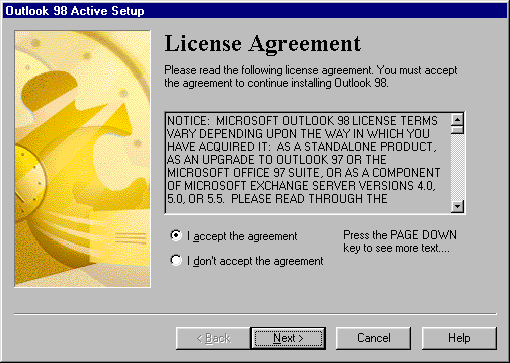
- Click the Next button.
- In the User name box, type your name.
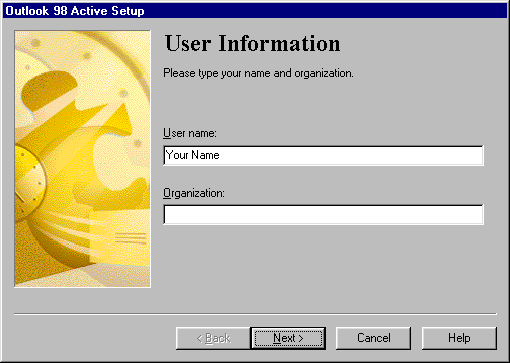
- Click the Next button.
- From the drop-down list, select Standard Installation.
(Note: Minimal Installation does not include help files, and Full Installation will
increase download time).
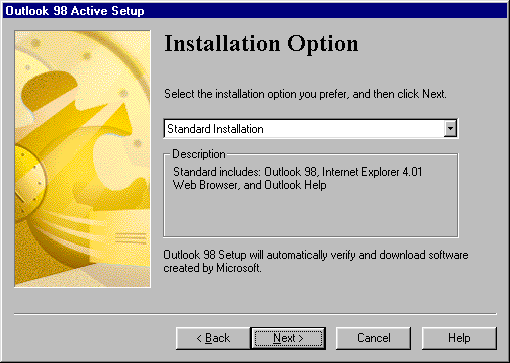
- Click the Next button.
- If you currently have Outlook 97 installed, you will be
asked whether you use the version of Outlook installed on this computer to read
electronic mail. Select Yes if you use Outlook 97 for your EarthLink mail.
Otherwise, select No.
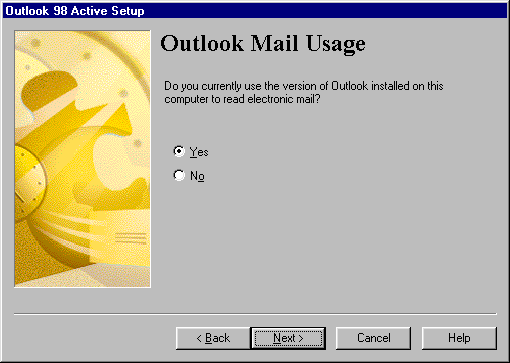
- Click the Next button.
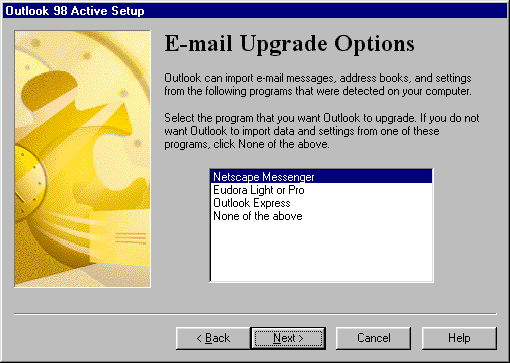
- If you are prompted to upgrade another mail program, choose
the one you currently use for your EarthLink mail. If you don't use any of them, chose None
of the above.
- Click the Next button.
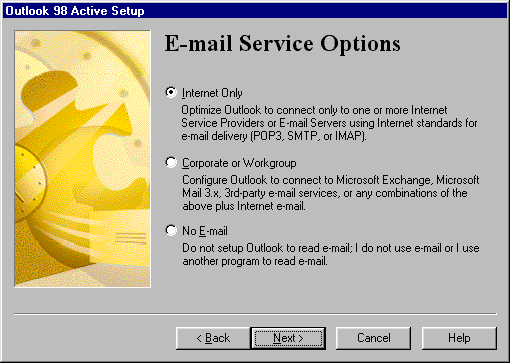
- If you are prompted to choose an E-Mail Service Option,
select Internet Only
- Click the Next button.
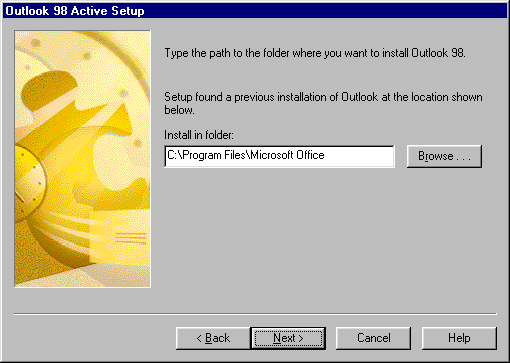
- Click the Next button to accept the default
installation location
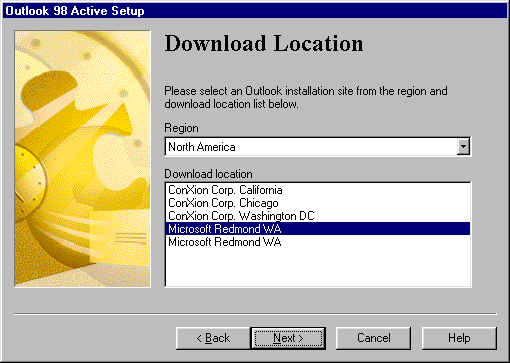
- Choose your Region, then select a Download
location near you.
- Click the Next button.
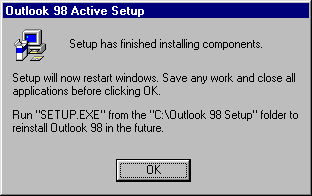
- When setup is finished, click the OK button to
restart windows.
|