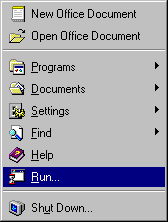
- Click the Start button and choose Run.
- In the Open text box, type ftp ftp.eudora.com
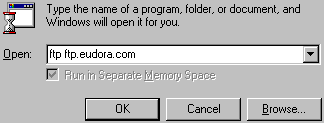
- Click the OK button.

- At the User prompt, type FTP and press the Enter
key.
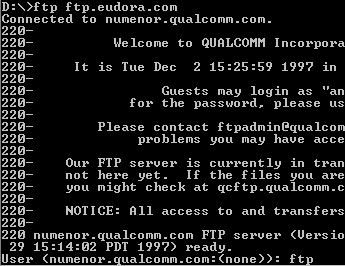
- At the Pass prompt, type your email address and press
the Enter key.

- Type bin and press the Enter key.

- Type hash and press the Enter key.

- Type get /eudora/eudoralight/windows/english/305/eul305.exe
and press the Enter key.
- When the file has finished downloading, type bye and
press the Enter key.

Install
- Double-click teh eul305.exe icon on the desktop.

- Click the Next button.
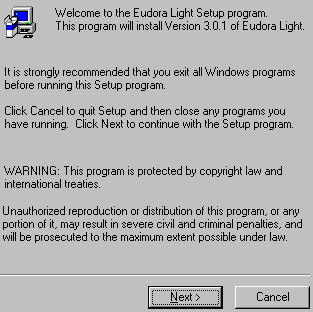
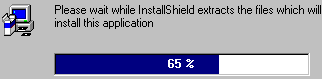
- Wait for the installation files to be unpacked.
- Take a moment to read the Software License Agreement.
When you are ready to continue, click the Yes button.

- Click the Next button.
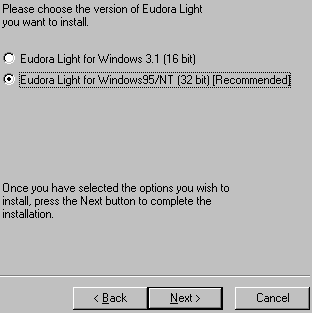
- Click the Next button.
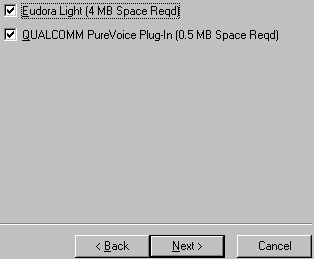
- Click the Next button.
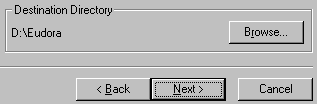
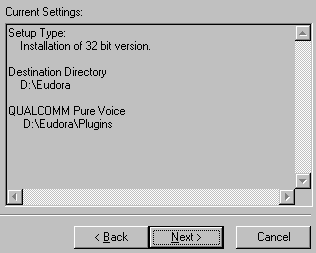
- Review the installation options and click the Next
button.
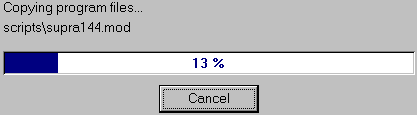
- Wait while setup copies the program files.
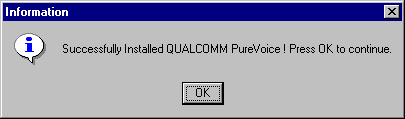
- Click the OK button.
- If you receive a message that says something like Some
files could not be updated because they are currently in use..., just click the OK
button.

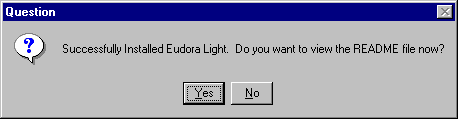
- Click the No button.
|